Self Service Password Reset for Paragon SharePoint and VPN Services
1. Open Browser of your choice in Private or Incognito Mode
2. Navigate to https://portal.office.com
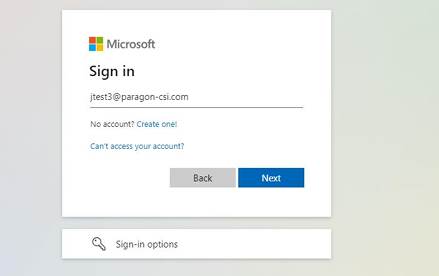
3. Enter your Paragon-csi.com email address.
a. Ex. Jtest3@paragon-csi.com
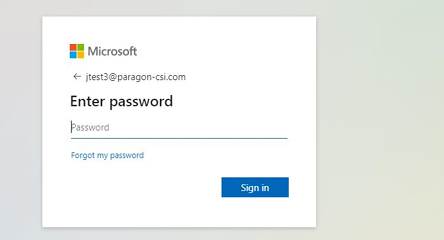
4. Select “Forgot my Password”
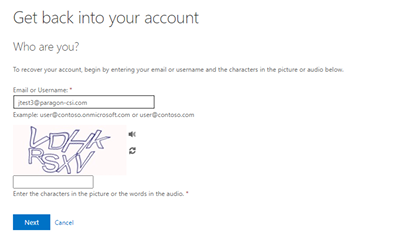
5. You will be prompted to enter characters to verify you are human. Enter the shown characters and click next.
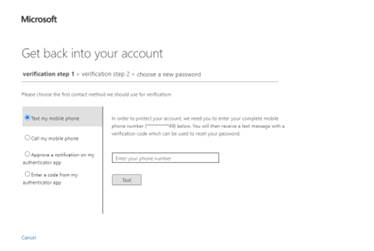
6. You will be prompted to verify 2 forms of authentication before a password reset will be allowed. These 2 forms of authentication would have been setup by you during initial setup. They typically consist of using the Microsoft Authentication App, Text to phone, Call to phone or email.
7. After verifying Authentication, you will be asked to create a new password and enter it 2x. After successfully setting up new password, log out of all browsers and test sign-in using new password at https://portal.office.com in Private/Incognito Mode.
Any questions please reach out to Jeff and/or Austin using IT@paragon-csi.com
Was this article helpful?
That’s Great!
Thank you for your feedback
Sorry! We couldn't be helpful
Thank you for your feedback
Feedback sent
We appreciate your effort and will try to fix the article