If a user rolls the GL EOM twice or forgets to roll it forward or manually keys in a new period and then changes it back, the GL balances in the GLMAST are out of sync and/or all zeros. This is normally discovered when the user sees incorrect balances on the GL820- GL Trial Balance Report.
To correct it, we have to run several QDs.
Procedure:
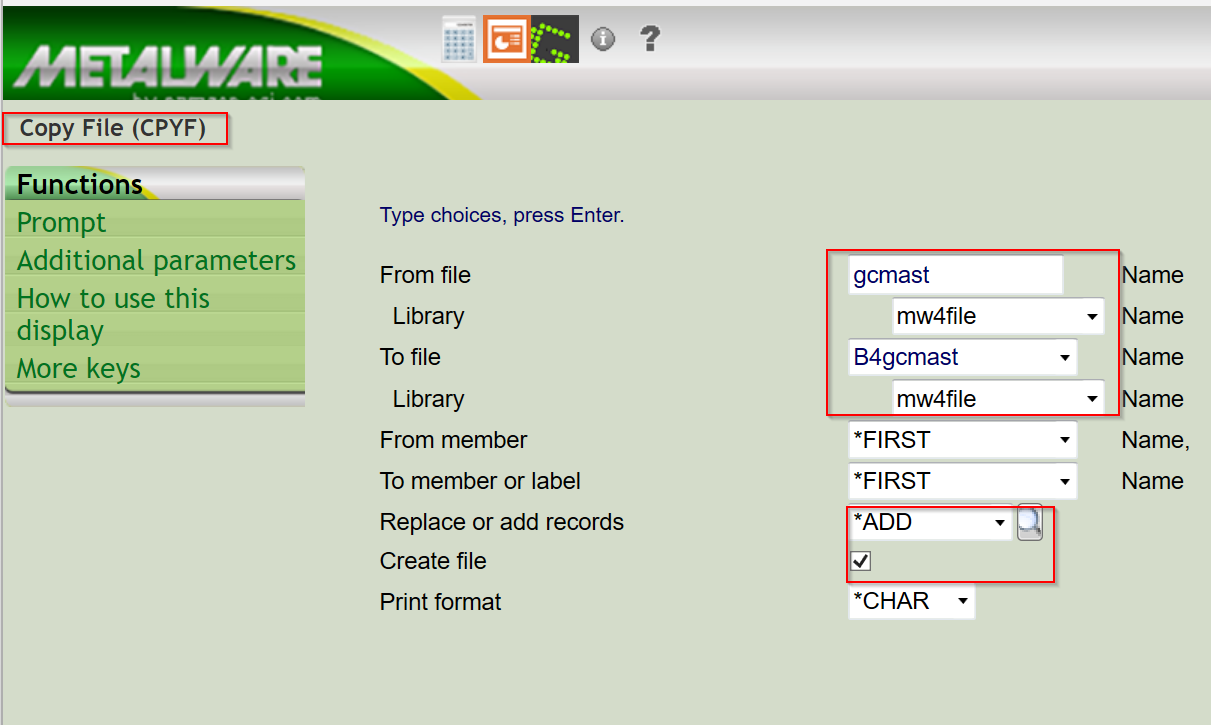
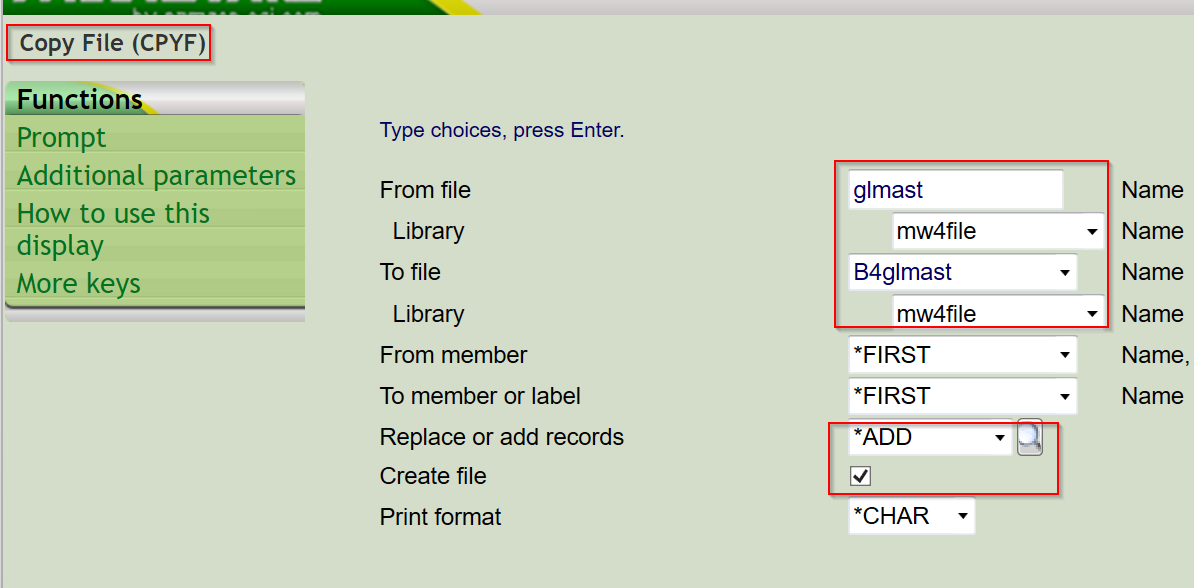
1) CPYF GCMAST and GLMAST.
Copy the files for safekeeping so we have a save of what they looked like before we did anything.
Key in CPYF on the command line and F4 to Prompt it.
2) Next, have the user verify that NO users will be doing anything with journal entries, creating, editing and/or posting
until further notice.
Have the user verify the company/district he is signed on as.
Have the user verify the period/year of the last CORRECT PERIOD.
Have the user verify the company/district of the FIRST INCORRECT PERIOD.
3) Run a GL820- GL Trial Balance Report on the current system so you have a BEFORE picture of the GL Balances
You can also go into GL420-Chart of Accounts FM to display the account balances using F13-Display Actual
The process needs to happen from the last correct period through to the current period. If period 02 is correct and you are in period 05, then you need to start with period 03 and run the progams 2 times until you end at period 05.
4) CALL GL445 to set the GL Period/Yr to the one you want to correct because once you key in the QD command there
is no prompt to change it there (in QDGLMSTCL). Example period 03
5) When all of this is done, key in CALL QDGLMSTCL to correct the Balance Sheet accounts and press enter through the screens.
(Note: You can rerun the GL820- GL Trial Balance Report at this time to see if the balance updates or you can wait until you have run the other two programs.)
6) Key in CALL QDGLPLCL to correct the P&L accounts and press enter through the screens.
7) Be careful on this last program because you have to key two fields and and the period must be for the PERIOD YOU ARE FIXING. So in this example, I am fixing period 03 and here I will key in period 03 because that is the FIRST period that is incorrect.
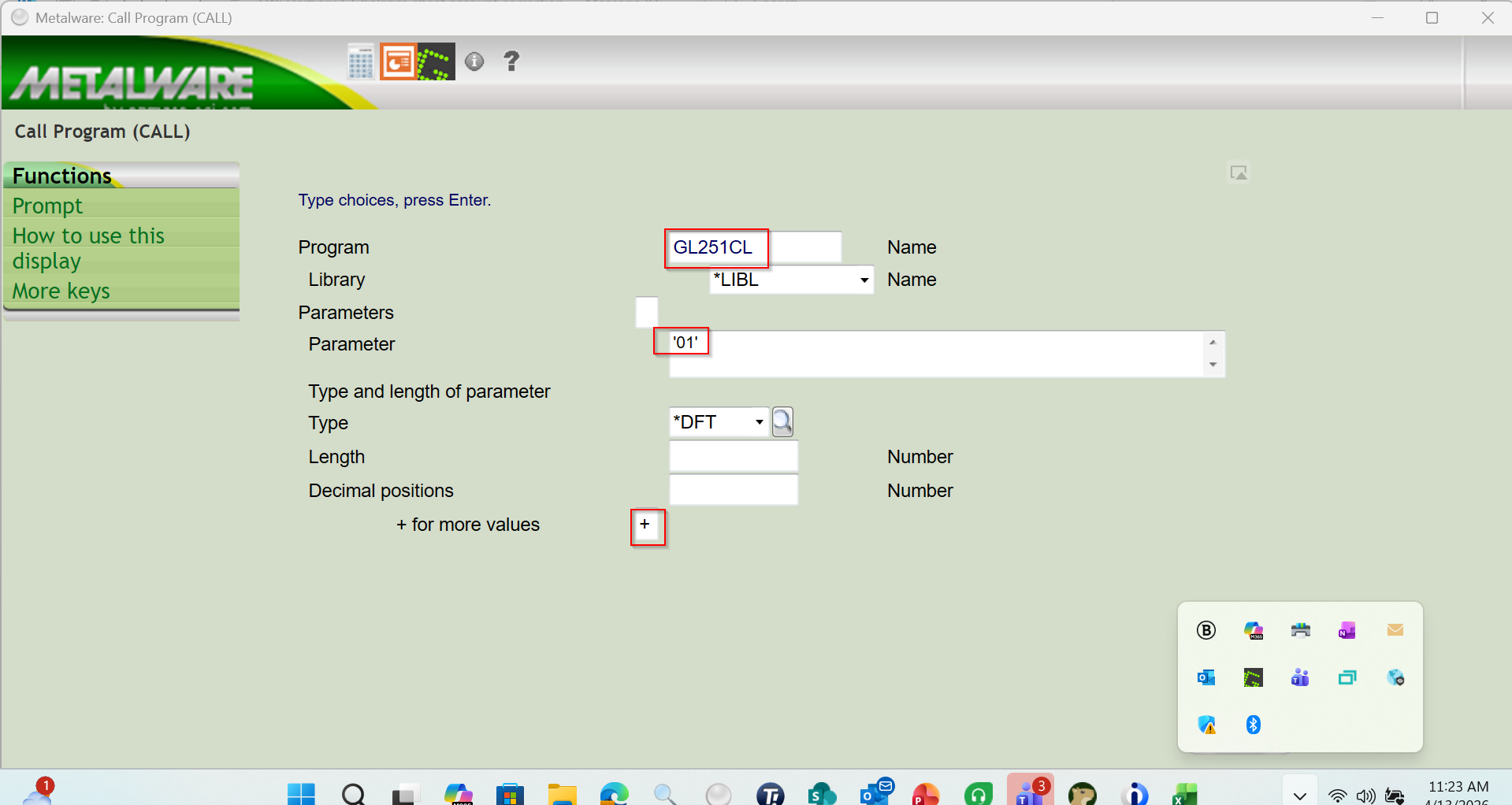
key in CALL GL251CL to correct the Retained Earnings and press F4=Prompt.
Key in the parameter as the Company number '01' two digits in single quotes.
And key in a + for Additional Parameters
Then Page down
Note: Getting to the next page was a problem so be sure to go to the GREEN SCREEN and put in a + (plus sign) and then page down to get to the field for the second parameter!!!!
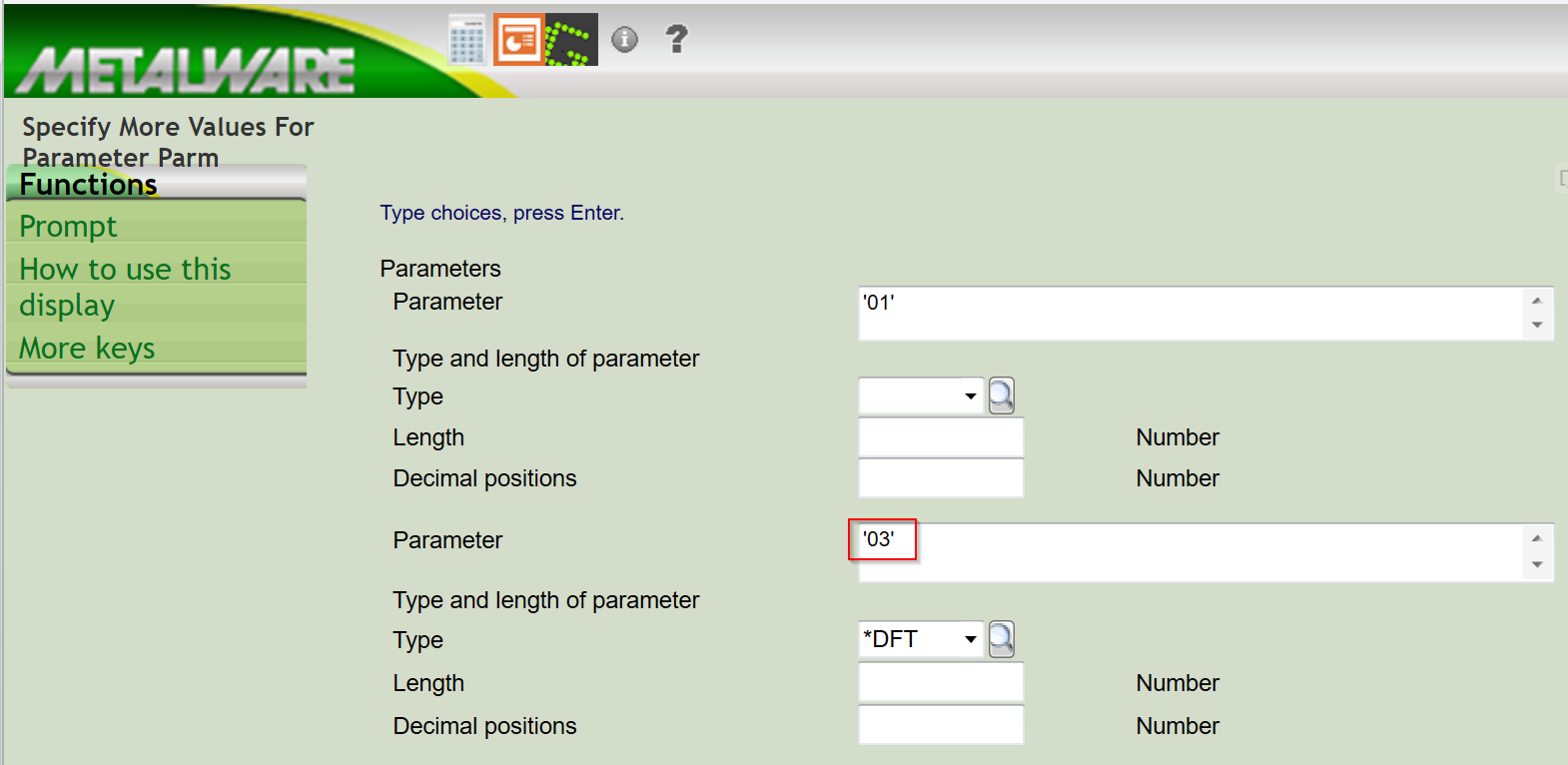
 After paging down, key in the second parameter for the period being fixed.
It should be two digits in single quotes.
For this example, I have keyed in '03' since it is the period being fixed.
Also, notice the first parameter for company '01' carried over. Leave that alone.
Then press enter through the next screens to process the change.
8) Next, you can run the GL Trial Balance (GL820) and GL Balance Sheet to see verify the changes.
9) CALL GL445 to set the GL Period back to what it should be for the current period
10) Notify the user that they can run the GL Financial reports to verify the balances and if ok, let users resume normal GL activity.
11) Remember to delete the saved files B4gcmast and B4glmast after some time (maybe until the next month end is completed.
Was this article helpful?
That’s Great!
Thank you for your feedback
Sorry! We couldn't be helpful
Thank you for your feedback
Feedback sent
We appreciate your effort and will try to fix the article